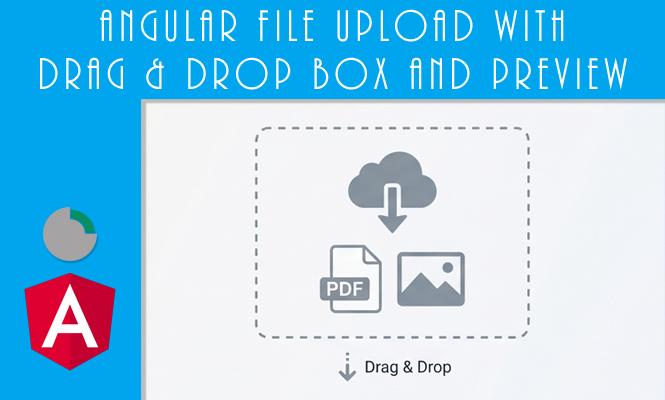
Implementing a seamless file upload experience is a standard requirement for modern web applications. Moving beyond a simple file input to a dedicated drag and drop zone significantly improves user engagement. This article explores a practical Angular implementation that provides real-time previews for both images and PDF documents.
Effective file management systems rely on visual feedback. When a user drags a file into a browser, they expect an immediate confirmation that the file was accepted and a glimpse of its content. Using Angular, we can build a robust component that handles these interactions by leveraging the HTML5 Drag and Drop API combined with the FileReader interface. This approach eliminates the need for heavy external libraries and keeps the application lightweight and responsive.
Component structure and the Drop Zone
The core of this implementation lies in the BoxFileComponent. This component acts as the container for the upload logic and the preview display. In the template, the drop zone is defined by binding to several standard drag events: dragover, dragleave, and drop.
To prevent the browser from its default behavior (which is usually opening the file in a new tab), we must intercept these events. In Angular, this is done through event binding in the HTML template.
Practical Template Configuration:
<div class="drop-zone"
     (dragover)="onDragOver($event)"
     (dragleave)="onDragLeave($event)"
     (drop)="onFileDropped($event)">
  <p>Drag and drop your file here or click to browse</p>
  <input type="file" #fileInput (change)="onFileSelected($event)" hidden>
</div>
The CSS associated with this zone should provide visual feedback, such as changing the border color or adding a subtle background overlay when the user is hovering over the area with a file.
Processing file upload and generating previews
Once a file is dropped or selected via the hidden input, the component needs to validate the file type and generate a data URI for the preview. The logic distinguishes between images (which can be displayed in an <img> tag) and PDF files (which often require an <iframe> or an <embed> tag).
The FileReader API is used to read the file content asynchronously. For images, we read the file as a Data URL. For PDFs, the process is similar, allowing the browser’s native PDF viewer to render the document within the preview area.
TypeScript Implementation Logic:
onFileDropped(event: DragEvent) {
  event.preventDefault();
  const files = event.dataTransfer?.files;
  if (files && files.length > 0) {
    this.handleFile(files[0]);
  }
}

handleFile(file: File) {
  const reader = new FileReader();
  reader.onload = (e: any) => {
    this.previewUrl = e.target.result;
    this.fileType = file.type;
  };

  if (file.type.match('image.*') || file.type === 'application/pdf') {
    reader.readAsDataURL(file);
  }
}
By storing the fileType and the previewUrl, the template can conditionally render the appropriate preview element using *ngIf.
Rendering Previews for Different Media Types
Handling the visual output requires a flexible template structure. Images are straightforward, but PDFs require specific handling to ensure they fit within the UI constraints of the component.
In the HTML template, the use of a switch or multiple if statements allows for a clean separation of the preview types. It is important to sanitize the URL if you are using it in an iframe src to prevent security warnings from Angular’s DOM Sanitizer.
Preview Template Example:
<div class="preview-container" *ngIf="previewUrl">
  <img *ngIf="fileType.startsWith('image/')" [src]="previewUrl" alt="File preview">

  <embed *ngIf="fileType === 'application/pdf'" [src]="previewUrl" type="application/pdf" width="100%" height="400px">

  <button (click)="removeFile()">Remove</button>
</div>
Error Handling and Problem Solving for file upload
When building drag and drop functionality, several common issues can disrupt the user experience, from browser security restrictions to file size constraints.
Handling Security Sanitization
Angular’s security model blocks external or dynamic resources in iframe or embed tags by default. If your PDF preview doesn’t show up and the console throws a “SafeValue must use [property]=binding” error, you must use the DomSanitizer service.
Solution: Inject DomSanitizer and bypass security for the specific URL: this.safeUrl = this.sanitizer.bypassSecurityTrustResourceUrl(e.target.result);
File Type and Size Validation
Allowing users to upload any file type can lead to broken previews or server-side errors. Always implement a check before starting the FileReader.
Solution: Check the file.size and file.type at the beginning of the handleFile method. If the file exceeds 5MB or isn’t a supported image/PDF, trigger a UI notification and exit the function.
Drop Zone Visual Stuck
Sometimes, the “dragover” style stays active even after the user drags the file away. This happens because “dragleave” events can fire when moving over child elements of the drop zone.
Solution: Use a counter or check the relatedTarget of the event to ensure the drag has truly left the component boundaries before removing the active CSS class.
Summary of file upload implementation
A custom Angular file uploader provides complete control over the user experience and file processing workflow.
- Event Management: Intercepting dragover and drop events is essential to prevent default browser behavior.
- FileReader Integration: Using the FileReader API allows for the generation of local URLs for instant feedback.
- Conditional Rendering: Using Angular directives to switch between image tags and embed tags based on MIME type.
- Security: Leveraging DomSanitizer to safely display PDF content in the browser.
- Validation: Implementing size and format checks early in the process to prevent unexpected errors.
Try it at home!